
To Login:
Note for On-Premise Users: Before trying to connect to an On-Premise Server using the App., users should first browse to the Server and see if they get the login page. When the login page successfully loads on the Mobile, the App will be able to connect. To use Mobile devices, you will need to manually update a file. The file C:\inetpub\wwwroot\WaspMVC\Mobile\weblink.x can be edited using notepad or any text editor. The URL in the <Download> link tag will need to be updated to use the MVC URL as well. Refer Configuration.
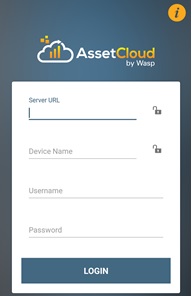
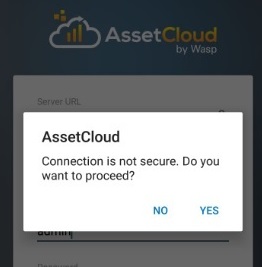
On Login, if the following message - "the connection is not secure.Do you want to proceed" appears. Tap on the Yes button and proceed.
Note: When you try to login, if the following message - is "the connection is not secure. Do you want to proceed? " appears. This indicates that the server does not have a CA certificate, instead, it has a self-signed certificate. Tap on the Yes button to log in. The application will save the signature of the certificate and will trust servers presenting this certificate in the future. Next time when you try to login with the same URL, the message will not appear. But if the user uninstalls and installs the application, the prompt message will appear again.
FAQs - Refer to Knowledgebase - Knowledgebase > Cloud > AssetCloud for FAQs. Example: Login screen fields are not editable
Note: Use of the resources described here requires internet access.