

Completed Work
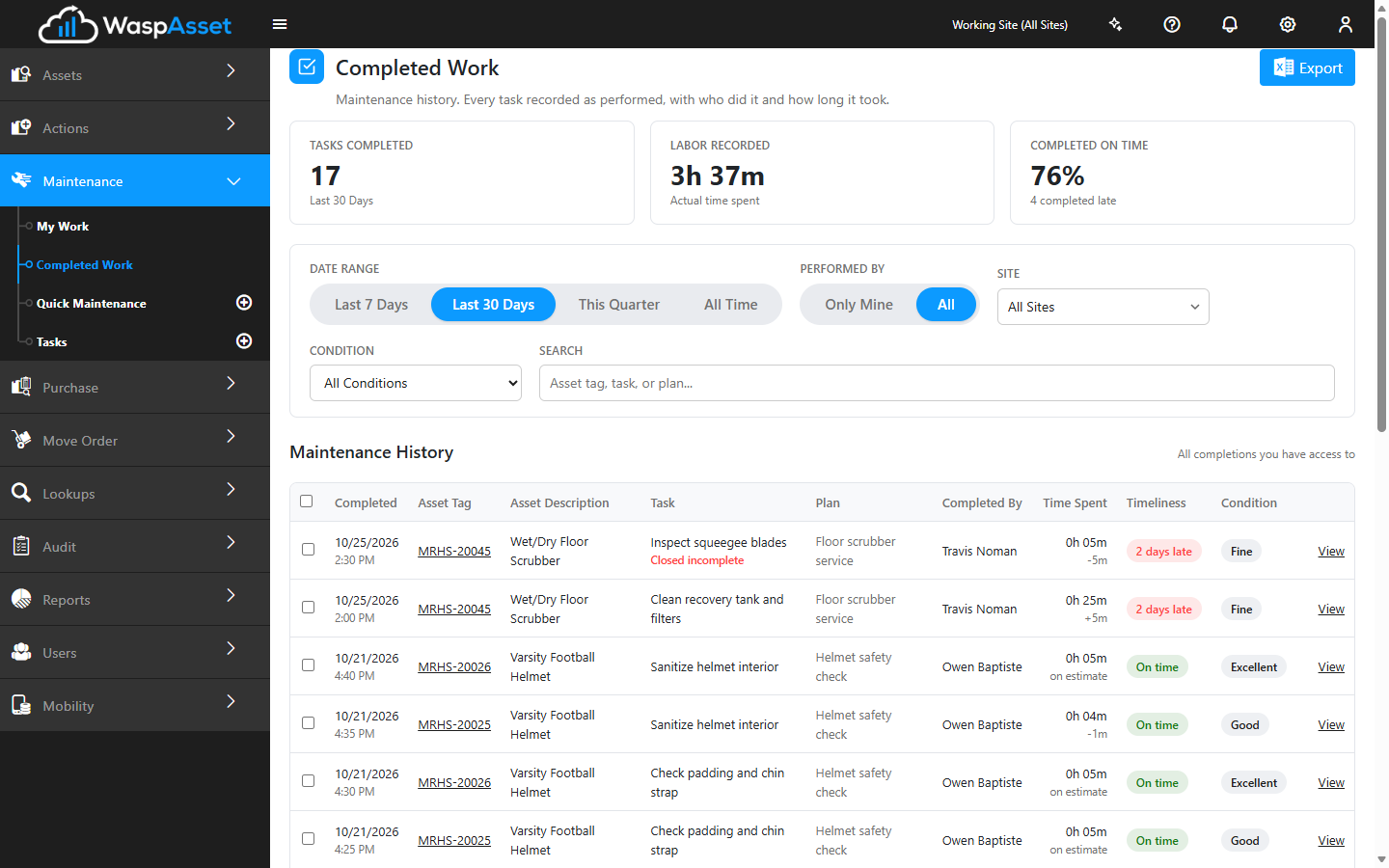
Completed Work is the history of your maintenance plan work: every task recorded on My Work, with who did it, how long it took against the estimate, and whether it was done on time. Use it to check on a job, review your team’s workload, or export records for an audit.
Before you begin
Section titled “Before you begin”- Edition — Completed Work is part of the Complete edition and appears once maintenance plans are turned on for your account.
- Permissions — you need view access to maintenance. You only see work on asset types and sites your role can access. See Roles.
Open Completed Work
Section titled “Open Completed Work”Open Maintenance in the left sidebar and choose Completed Work.
Read the summary
Section titled “Read the summary”Three tiles at the top summarize the work matching your filters:
- Tasks Completed — how many tasks were recorded in the selected date range.
- Completed On Time — the share finished by their due date, and how many were completed late.
- Labor Recorded — the total actual time technicians entered.
Filter the list
Section titled “Filter the list”- Performed By — Only Mine for work you recorded, or All for everything you have access to.
- Date Range — Last 7 Days, Last 30 Days, This Quarter, or All Time.
- Site and Condition — narrow the list to one site, or to work that left assets in a particular condition (for example, everything recorded as Damaged).
- Search — find records by asset tag, task, or plan.
Each row shows when the work was completed, the asset, the task and plan, who completed it, the Time Spent against the estimate, its Timeliness (On time or how many days late), and the asset’s condition after service.
View a completion record
Section titled “View a completion record”Click View on a row to open its Completion Record. It shows the asset and its location, the source plan, the task, when it was due and completed, who completed it, the estimated and actual time, the condition after service, the completion notes, and any attached photos or documents. Click View Asset to open the asset itself.
Export completed work
Section titled “Export completed work”- To export everything matching your filters, click Export at the top of the page.
- To export only some records, tick them and click Export in the bar at the bottom of the page.
The export downloads as a CSV file you can open in Excel. Along with what’s on screen, it includes the time spent and estimate in minutes, the days late, and each record’s outcome (completed, or closed as incomplete).
Troubleshooting
Section titled “Troubleshooting”- Completed Work isn’t in the Maintenance menu. It needs the Complete edition, maintenance plans turned on for your account, and view access to maintenance.
- A record I expected is missing. Check the Date Range and Performed By settings first. Only Mine hides work recorded by others. Records for asset types or sites outside your role’s access aren’t shown.
- “Only the first N records were exported.” Narrow the filters and export again to get the rest.
- Quick Maintenance and work orders aren’t listed. Completed Work covers maintenance plan work. An asset’s full service history, including Quick Maintenance and work orders, is on its Maintenance tab. See Asset details.
Related
Section titled “Related”- My Work — record the work that ends up here
- Maintenance plans — set up the recurring work
- Reports — run formatted maintenance plan reports
- Maintenance overview — how all the maintenance features fit together