

Maintenance plans
A maintenance plan is recurring service you set up once on an asset type, such as “Quarterly forklift inspection” or “Replace HVAC filters every 90 days.” The plan applies to every asset of that type, at every site, and the work comes due for each asset on schedule. Your technicians then find it on My Work.
Before you begin
Section titled “Before you begin”- Edition — maintenance plans are part of the Complete edition. If you’re on Complete and don’t see a Maintenance Plans tab on your asset types, contact Wasp support to have the feature turned on for your account.
- Permissions — setting up plans takes edit access to asset types plus the Maintenance Management privilege. You need create to add a plan, edit to change one, and delete to remove one. Without them you can still open a plan and read its tasks and schedule, but you can’t save. See Roles.
- Tasks — a plan is built from tasks in your task library. You can create a missing task while you build the plan.
- Assignees — plan tasks are assigned to employees, so set those up first. An employee doesn’t need a login to be assigned work.
How maintenance plans work
Section titled “How maintenance plans work”- One plan covers the whole asset type. Every asset of the type is covered at every site, with no per-asset setup. New assets of the type are covered automatically as soon as they’re added. If one site works differently, you can adjust the plan for that site without changing it anywhere else.
- A plan is a set of tasks on one schedule. Every task on a plan comes due on the same date. For example, an “Annual service” plan might contain Change oil, Replace filters, and Safety inspection.
- Each due date is an occurrence. When a plan comes due for an asset, that occurrence shows on My Work until every one of its tasks has been completed or closed as incomplete. Only then does the plan move on to the asset’s next due date.
- Disposed assets drop off. A disposed asset stops getting plan work. If you recover it, its maintenance resumes.
- Existing maintenance isn’t affected. Quick Maintenance and work orders you’ve set up on individual assets carry on as before.
Open an asset type’s maintenance plans
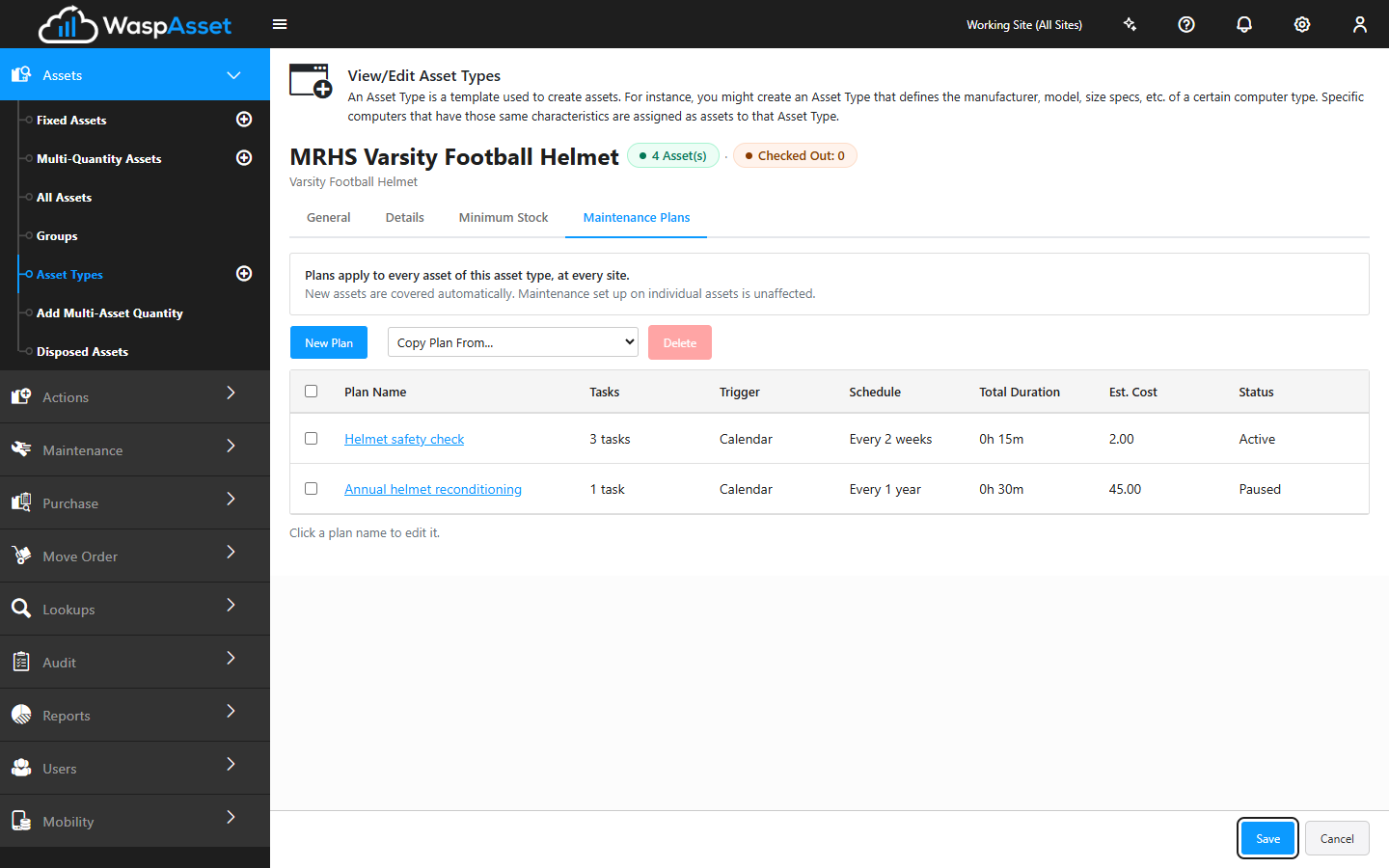
Section titled “Open an asset type’s maintenance plans”- Open Asset Type from the Asset sidebar and open the asset type.
- Select the Maintenance Plans tab.
The tab lists the asset type’s plans with their Tasks, Trigger (Calendar or Interval), Schedule (for example “Every 3 months” or “90 days after completion”), Total Duration, Est. Cost, and Status (Active or Paused). Click a plan name, or double-click its row, to open it.
Create a maintenance plan
Section titled “Create a maintenance plan”- On the asset type’s Maintenance Plans tab, click New Plan.
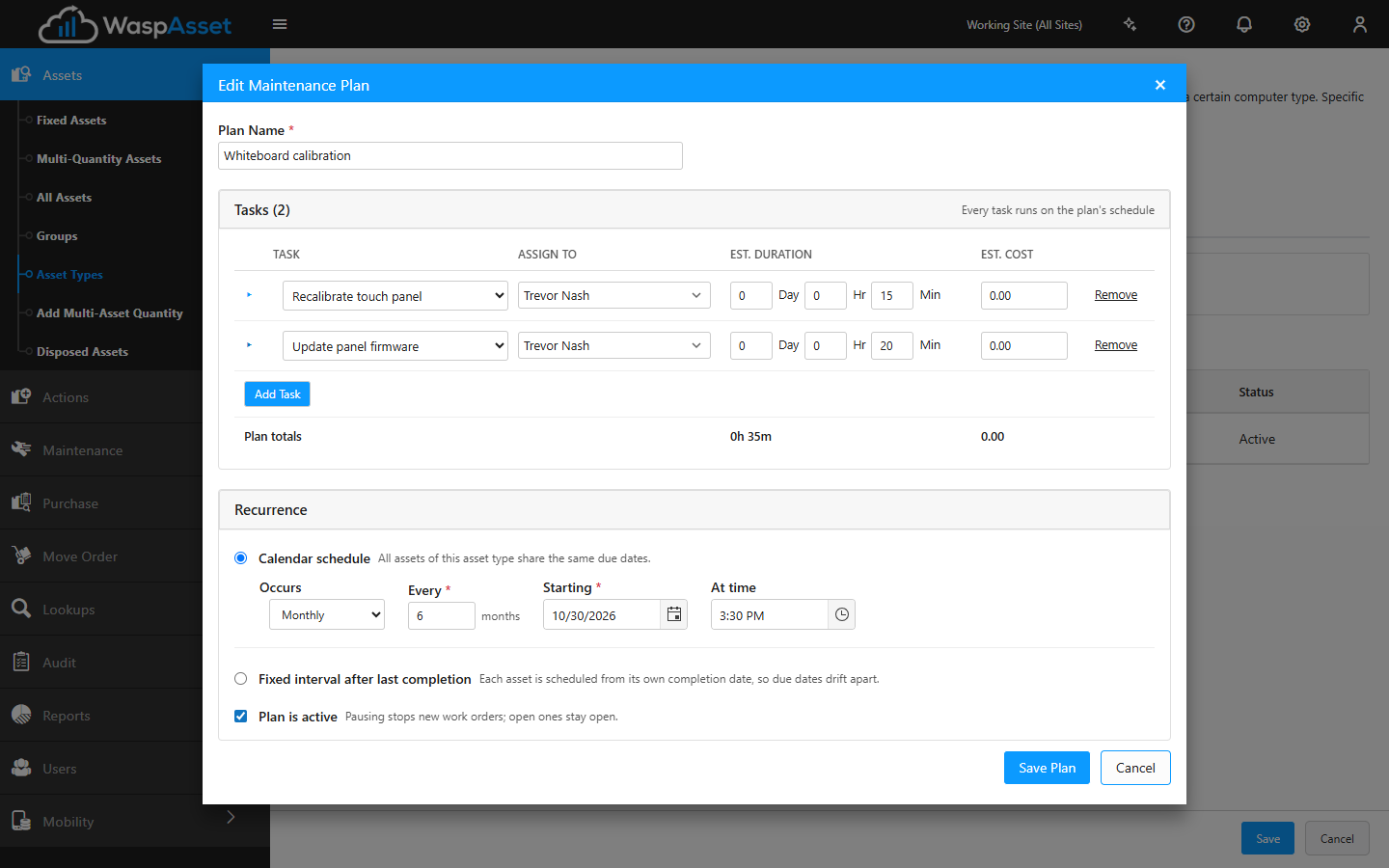
- Enter a Plan Name. This is required and must be unique within the asset type.
- Under Tasks, click Add Task and fill in the row:
- Task — choose a task from your library.
- Assign To — start typing to find the employee responsible for this task, or leave it Unassigned.
- Est. Duration — how long the task should take, in days, hours, and minutes.
- Est. Cost — what the task is expected to cost.
- Repeat for each task the plan needs. The Plan totals row adds up the duration and cost for you.
- Under Recurrence, choose how the plan repeats (see Choose a recurrence below).
- Leave Plan is active ticked so the plan starts scheduling work.
- Click Add Plan.
Create a task you can’t find
Section titled “Create a task you can’t find”If the task you need isn’t in the task select yet, choose New task at the bottom of the list. Enter a Task Name, plus an estimated duration and instructions if you like, then click Create Task. The task is added to your task library, so other plans, work orders, and Quick Maintenance can use it too. Creating tasks this way needs create access to tasks.
Task instructions
Section titled “Task instructions”Each task brings its instructions from the task library. Click Show instructions on a task row to see them.
- Leave the box as it is (labeled From the task library) and the plan keeps following the library. If someone updates the task’s instructions later, this plan picks up the change.
- Type over the instructions to give this plan its own version (labeled Overridden for this plan). Use Revert to the task library to go back.
- Instructions support Markdown for headings, lists, bold text, and links. Use Write and Preview to check how they’ll look to a technician.
Choose a recurrence
Section titled “Choose a recurrence”A plan repeats in one of two ways. Choose the one that matches how the service is really scheduled.
Calendar schedule
Section titled “Calendar schedule”All assets of the type share the same due dates. Use this for service tied to the calendar, such as an annual inspection every January.
- Occurs — Daily, Weekly, Monthly, or Yearly.
- Every — how many days, weeks, months, or years between occurrences (1 or more). For example, Monthly every 3 months is quarterly.
- Starting — the date of the first occurrence. Required.
- At time — optionally, the time of day the work comes due.
Fixed interval after last completion
Section titled “Fixed interval after last completion”Each asset is scheduled from its own completion date, so due dates drift apart over time. Use this for service that depends on when it was last done, such as “replace the filter 90 days after the last replacement.”
- Next occurrence due — the number of days after the last occurrence is completed (1 or more).
- First occurrence due — when the plan first comes due for an asset with no history yet. Required.
Copy a plan from another asset type
Section titled “Copy a plan from another asset type”If a similar asset type already has the plan you need, copy it instead of starting over.
- On the Maintenance Plans tab, open the Copy Plan From… list. Plans are grouped by the asset type they belong to.
- Choose a plan. The plan editor opens with a copy of its tasks, assignees, estimates, instructions, and schedule.
- Adjust anything that’s different for this asset type, and rename the plan if this asset type already has one with the same name.
- Click Add Plan. Nothing is created until you save.
Adjust a plan for one site
Section titled “Adjust a plan for one site”A plan runs the same way everywhere by default. When one site needs something different (its own technician, a busier schedule, or extra travel time), give the plan site-level settings on that site’s record. The plan itself doesn’t change, and every other site keeps using it as written.
- Open Site from the Lookups menu and open the site.
- Select the Maintenance Plans tab.
- Choose a plan from the Choose a maintenance plan… list. Plans are grouped by asset type, and paused plans are marked (Paused). The plan’s own estimate and cost are shown for reference.
- Fill in only what’s different at this site:
- Assigned To — replaces the plan’s assignee on every task, for assets at this site. Choose an employee, choose Unassigned, or leave it on Plan’s assignees to keep the plan’s.
- Frequency — replaces how often the plan runs at this site. A calendar plan takes an Occurs and Every (for example, Monthly every 1 month instead of every 3). A fixed-interval plan takes a number of days after the last completion. Leave it blank to keep the plan’s frequency. The plan’s start date and time still apply.
- Added Time and Added Cost — extra time and cost for this site, such as travel to a remote building. These are added once each time the plan comes due, on top of the plan’s own estimate, not once per task.
- Site Instructions — notes for this site, such as where to collect keys or who to check in with. Technicians see them once, above each task’s own instructions.
- Click Save.
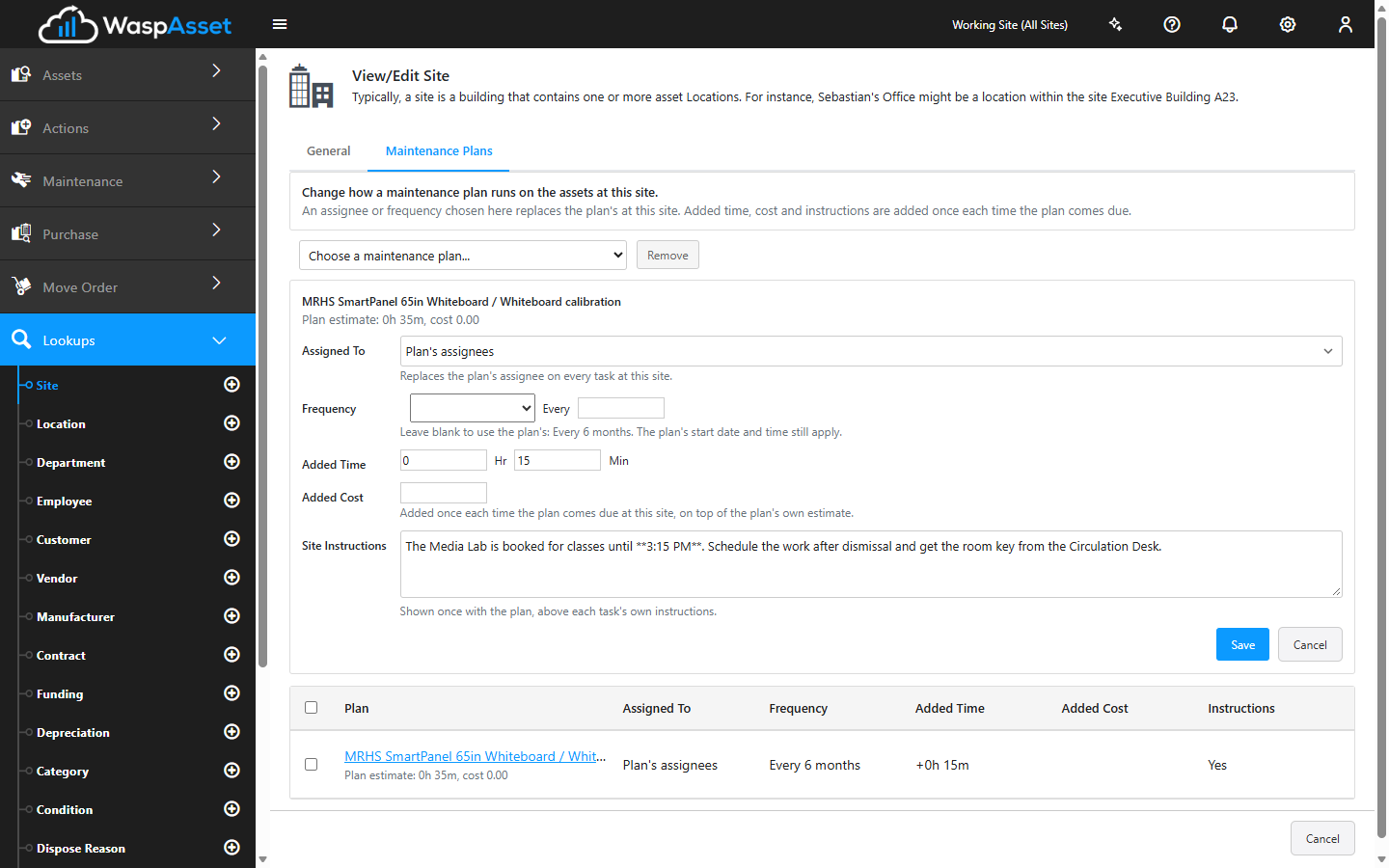
The site’s settings appear in the list on the tab, with Assigned To, Frequency, Added Time, Added Cost, and whether the site has Instructions. A dimmed frequency means the site uses the plan’s. To change a site’s settings, click the plan name. To go back to the plan’s own values, tick the plans and click Remove. Removing a site’s settings doesn’t change the plan.
Site settings need edit access to sites, plus the matching Maintenance Management privilege: create to add settings, edit to change them, and delete to remove them. You don’t need access to the plan’s asset type.
Edit, pause, or delete a plan
Section titled “Edit, pause, or delete a plan”- Edit — click the plan name, make your changes, and click Save Plan. Changes take effect right away for every asset of the type, including work that’s already on My Work.
- Add a task to a plan — if an asset’s latest occurrence was already finished, adding a task reopens that occurrence with just the new task outstanding. Older history isn’t touched.
- Pause — clear Plan is active and save. A paused plan stops scheduling work, and its outstanding work leaves My Work while it’s paused. Work that was already recorded stays in your history. Tick the box again to resume. Any asset that came due while the plan was paused shows a single past-due occurrence.
- Delete — tick one or more plans on the Maintenance Plans tab, click Delete, and confirm. The plans stop scheduling work, and maintenance already recorded against them stays in Completed Work.
Troubleshooting
Section titled “Troubleshooting”- The Maintenance Plans tab is missing. Maintenance plans need the Complete edition and must be turned on for your account. If you’re on Complete, contact Wasp support.
- New Plan or Delete is missing, or Save Plan doesn’t appear. Your role doesn’t have the access it needs. Ask an administrator to check your asset type and Maintenance Management privileges.
- “A maintenance plan with this name already exists for this asset type.” Plan names must be unique within an asset type. Rename the plan, or edit the existing one.
- An employee isn’t in the Assign To list. Only active employees can be assigned. Check the employee record under Employees.
- A plan’s work isn’t showing on My Work. Check that the plan is Active, that its start or first-due date has arrived (or look on the Upcoming tab), and that the asset isn’t disposed. Also check the Show setting on My Work. Mine lists only work assigned to you.
- Work at one site goes to a different person, or comes due on a different schedule, than the plan says. That site probably has its own settings for the plan. Open the site’s Maintenance Plans tab under Lookups > Site to check.
- An employee who was assigned plan work has been deleted. Their outstanding maintenance becomes unassigned. Where a site had made them its assignee, the work goes back to the plan’s assignee instead. Reassign it from My Work, or update the plan’s or the site’s Assigned To.
Related
Section titled “Related”- My Work — perform and reassign the work your plans schedule
- Completed Work — the history of everything performed
- Tasks — the task library plans are built from
- Asset types — where maintenance plans live
- Sites & locations — where site-level plan settings live
- Maintenance overview — how all the maintenance features fit together