

My Work
My Work is your maintenance to-do list. It lists the work your maintenance plans have scheduled, and any open Quick Maintenance, grouped by asset so you can do everything an asset needs in one visit. From here you record completed work, hand work to someone else, and print a work list to take into the field.
Before you begin
Section titled “Before you begin”- Edition — My Work is part of the Complete edition and appears once maintenance plans are turned on for your account.
- Permissions — you need view access to maintenance to open My Work. Recording work takes the Perform Maintenance privilege. Reassigning work takes edit on Maintenance Management. Without those, the matching buttons don’t appear. See Roles.
- Your employee record — “Mine” means work assigned to the employee your user is linked to. If your user isn’t linked to an active employee, ask an administrator to link one so you can see your own work and record it.
Open My Work
Section titled “Open My Work”Open Maintenance in the left sidebar and choose My Work.
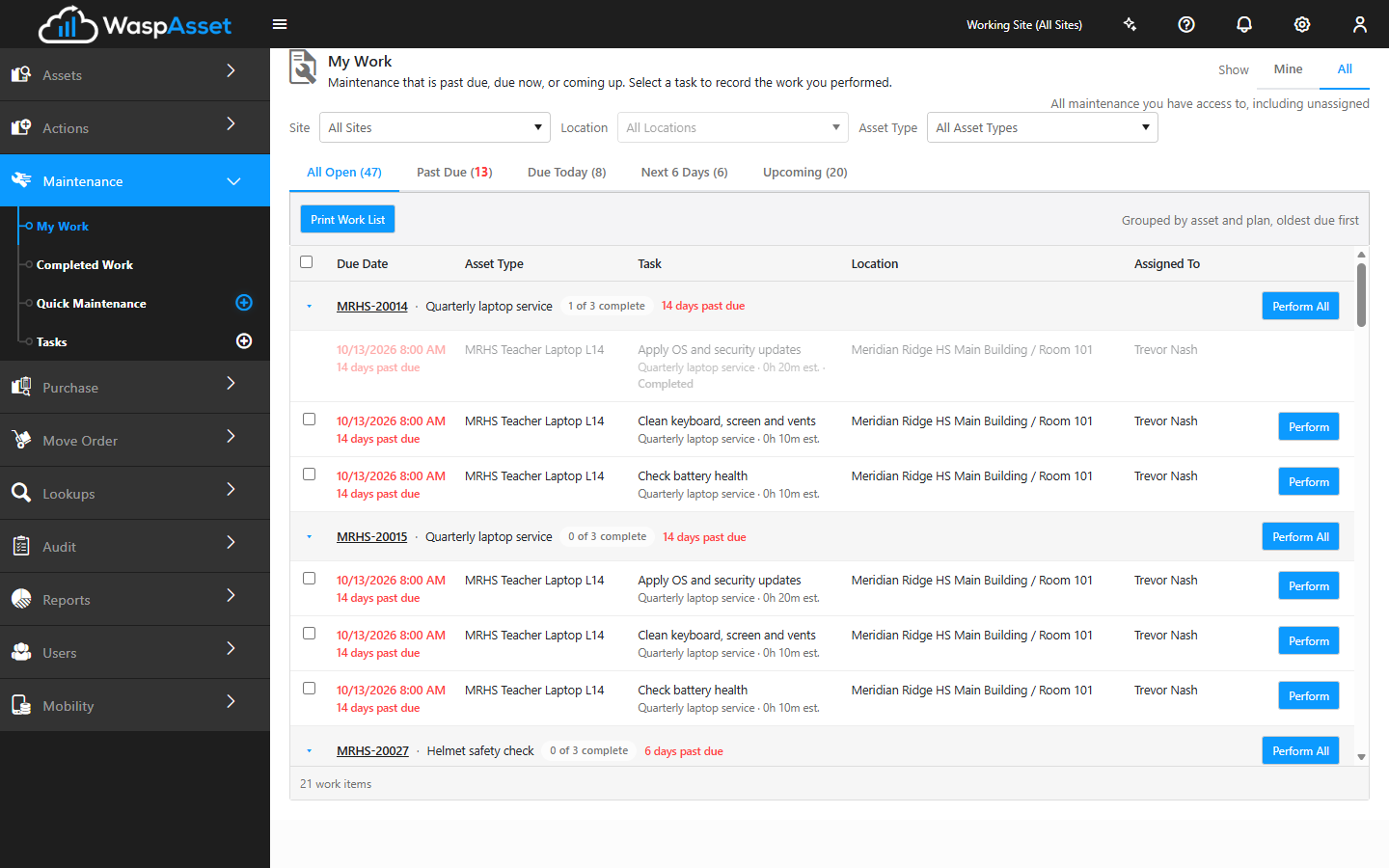
Find the work you need
Section titled “Find the work you need”- Show — choose Mine for work assigned to you, or All for all maintenance you have access to, including unassigned work.
- Status tabs — each tab shows how many tasks it holds.
- All Open — everything outstanding.
- Past Due — due before today.
- Due Today — due at any time today.
- Next 6 Days — due in the six days after today.
- Upcoming — due after that.
- Site, Location, and Asset Type — narrow the list to one place or one kind of asset. For example, show everything due at one site today, or every forklift due this week.
The list is grouped by asset and plan, oldest due first. Each group shows the asset tag (click it to open the asset), how many tasks the visit involves, and how many of them are done, such as 1 of 3 complete. If the asset’s site adds time to the plan, the group shows that too, such as Site +1h 30m. Each task row shows its due date, how far past due it is, its location, and who it’s assigned to.
Your filters are kept in the page’s address, so you can bookmark a view or send the link to a colleague.
Record completed work
Section titled “Record completed work”- Find the task and click Perform on its row. To work through every task on an asset in turn, click Perform All on the group instead.
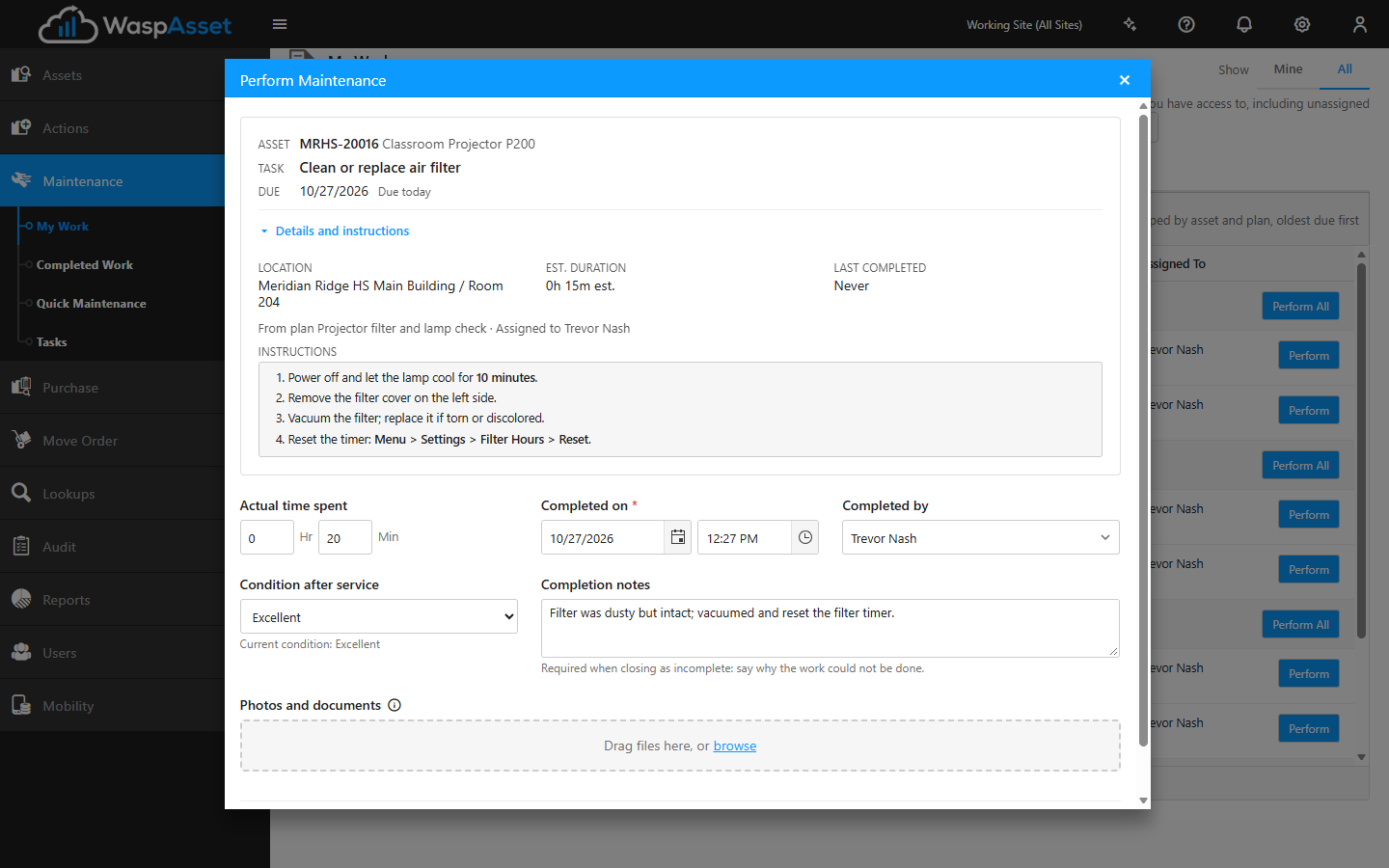
- Check the Asset, Task, and Due date at the top of the Perform Maintenance window. Open Details and instructions to see the asset’s location, the estimated duration, the plan, who it’s assigned to, when it was last completed, and the task’s instructions. If the asset’s site has its own instructions for the plan, they appear above the task’s as Site instructions.
- Fill in what you did:
- Actual time spent — hours and minutes.
- Completed on — the date and time you finished. It’s required and can’t be in the future.
- Completed by — defaults to you. Choosing someone else takes edit on Maintenance Management.
- Condition after service — the asset’s condition now. Choosing a different condition updates the asset. Leaving it blank keeps the asset’s current condition.
- Completion notes — anything worth recording about the work.
- Photos and documents — drag files in, or click browse. You can attach up to five files of the types your company allows.
- Click Mark Complete.
The task is marked Completed in its group. When every task in the group is done, the group leaves My Work and the plan schedules the asset’s next occurrence.
Work through several tasks at once
Section titled “Work through several tasks at once”Tick the tasks you’re going to do, then click Perform in the bar at the bottom of the page. The window steps through your selection in order and shows where you are, such as Task 2 of 3 selected. After you save each one, click Next to move on.
Close work you couldn’t complete
Section titled “Close work you couldn’t complete”If the work can’t be done (the asset is missing, or a part is on back order), click Close as Incomplete instead of Mark Complete. Completion notes are required here: explain why the work wasn’t done. The task is closed as Closed incomplete, the plan moves on to its next occurrence, and the record is kept in Completed Work.
Open Quick Maintenance
Section titled “Open Quick Maintenance”Open Quick Maintenance records show on My Work alongside plan work, marked Quick Maintenance. Click the task name or Perform to open the record on the Quick Maintenance page and complete it there. Quick Maintenance rows can’t be selected for bulk perform, reassign, or print.
Reassign work
Section titled “Reassign work”Reassign work when someone is out or a job needs a different technician.
- Tick the tasks to hand over, then click Reassign in the bar at the bottom of the page.
- In Reassign to, start typing to find the employee. To undo an earlier reassignment, choose Restore plan default instead.
- Click Reassign.
By default, this applies to the selected work only. Later occurrences go back to whoever the plan (or the asset’s site) assigns them to, so nothing needs to be undone after a one-off cover.
To make the change permanent, tick Also reassign all future occurrences. This changes the default assignee on the plan for every asset of its asset type, including work that’s already open. Where the asset’s site sets its own assignee for the plan, the site’s setting changes instead and the plan is left alone. Changing a plan this way also needs access to the plan’s asset type (or, for a site’s setting, to the site). Wasp Asset tells you how many plans it left unchanged. That happens when the asset type or site is outside your access, or when you selected only some of a plan’s tasks at a site that sets its own assignee.
Print a work list
Section titled “Print a work list”Click Print Work List in the toolbar to print everything the current Show setting, tab, and filters are showing. To print only some of the work, tick it and click Print Work List in the bar at the bottom of the page.
The printout is a worksheet grouped by asset and plan, with space to record the result, so a crew can work from paper and you can enter the results later. Any time or instructions a site adds to a plan are printed with that asset’s work. Quick Maintenance isn’t included in the printed list. If your company has more than one version of the work list report, choose which one to use from the list beside the button.
Troubleshooting
Section titled “Troubleshooting”- My Work isn’t in the Maintenance menu. It needs the Complete edition, maintenance plans turned on for your account, and view access to maintenance.
- The list is empty. Try All instead of Mine, choose the All Open tab, and clear the Site, Location, and Asset Type filters. If it’s still empty, nothing is due within the plans you can see.
- There’s no Perform button. Your role doesn’t have the Perform Maintenance privilege.
- “This maintenance is no longer due as shown.” Someone else completed it, or the plan changed or was paused after you loaded the page. Click Refresh list.
- “Select who performed the maintenance. Your user is not linked to an active employee.” Ask an administrator to link your user to an employee record, or (with the right access) choose the person in Completed by.
- “Only the first N items are printed.” Narrow the filters or select specific work, then print again.
Related
Section titled “Related”- Maintenance plans — set up the recurring work that appears here
- Completed Work — review the work that’s been recorded
- Quick Maintenance — log one-off service against a single asset
- Maintenance overview — how all the maintenance features fit together